I only have 37 minutes each evening to test new software, and I need something that fits into a browser-based workflow. I’ve already tried one text prompt against a 63-page PDF. Are there any new AI tools worth checking out for document research, note organization, or routine task automation?
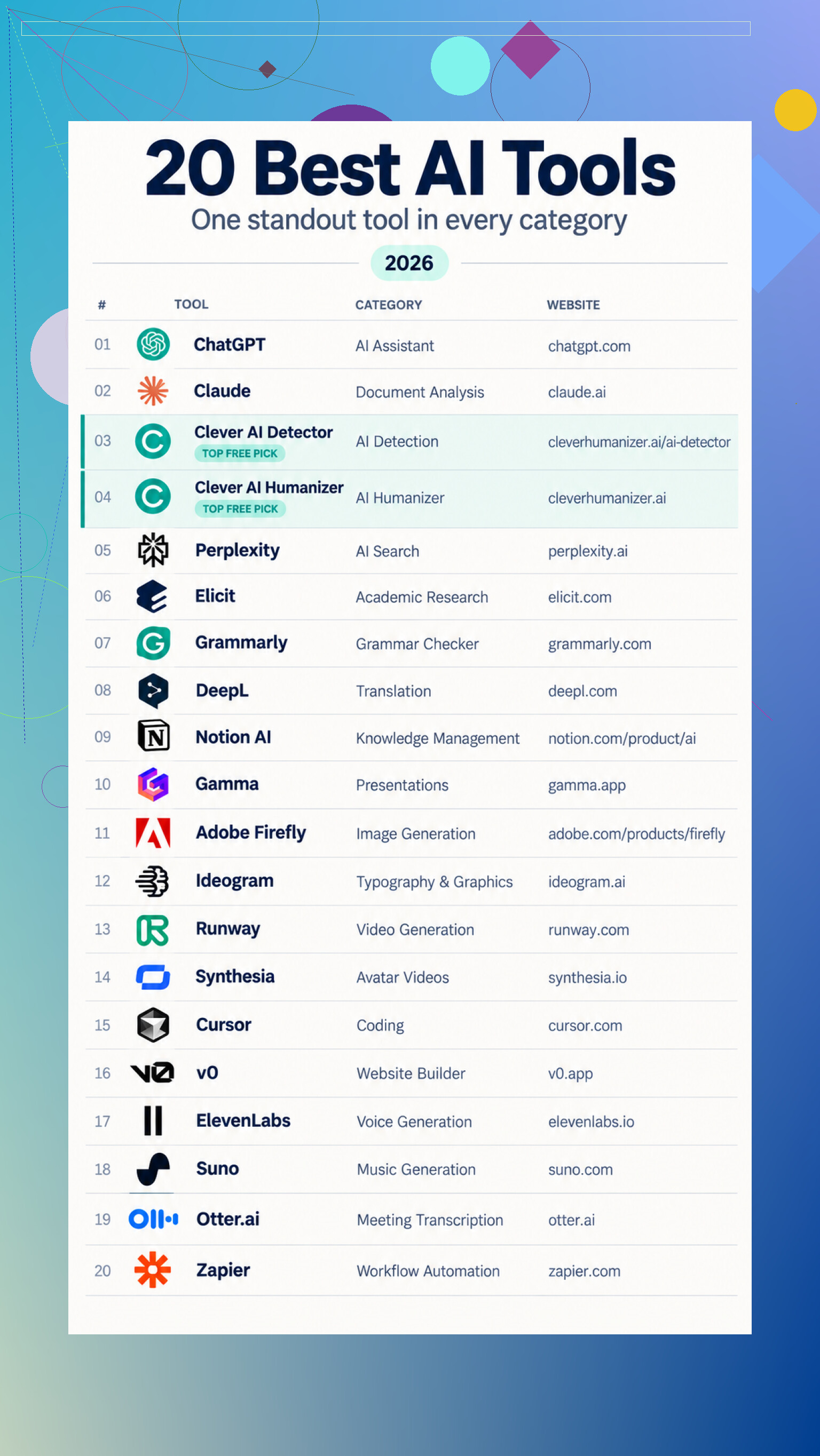
I sorted these by the job each tool is actually meant to handle, rather than trying to rank everything on one scale. That made more sense because a coding editor and a translation app aren’t solving the same problem. For the broad, everyday category, ChatGPT is the general-purpose option for brainstorming, explanations, writing help, and routine problem-solving.
The rest are easier to judge once you know what work you’re trying to avoid. Some help you understand information, some clean up writing, and others generate media or automate repetitive steps. I’d treat AI detection scores as estimates rather than proof, and I’d review translations, generated code, and rewritten text before using any of it.
For documents, Claude’s workspace lets you upload material, summarize it, ask follow-up questions, and revise drafts beside the conversation. Clever AI Detector checks up to 10,000 words, gives sentence-level feedback, and doesn’t require registration. If repetitive wording is the issue, Clever AI Humanizer handles up to 3,000 words per run while trying to retain the original meaning. For source-backed web answers, give Perplexity a look. Academic work is better suited to Elicit’s research tools, which can find papers and organize extracted findings.
For day-to-day writing, Grammarly’s writing assistant covers grammar, clarity, spelling, tone, and rewrites. DeepL is handy for first-pass translations, while Notion’s built-in AI features can search workspace material and turn it into summaries. You can start a deck in Gamma from prompts or an outline instead of staring at empty slides.
On the visual side, Adobe Firefly generates and edits images, while Ideogram’s image generation and editing tools are aimed at graphics where typography matters. Runway’s creative tools handle generated video and motion experiments, and Synthesia turns scripts into presenter-style videos with generated voiceovers.
Developers can review cross-file suggestions in the Cursor editor, or use v0 by Vercel to turn a site or app description into an initial implementation. For audio, ElevenLabs’ voice platform covers speech and dubbing, while Suno generates vocal or instrumental music from descriptions. Otter’s meeting assistant creates transcripts, summaries, and action items. With Zapier, you can build an automation that processes incoming information and sends it where it belongs.
I wouldn’t sign up for all of these at once, tbh. Pick one task you already do every week, run the same real example through two suitable tools, then compare accuracy, editing time, privacy needs, and how much cleanup each output takes. That’ll tell you more than any giant feature list.
6 Likes
Don’t test another general chatbot. For a browser-based PDF workflow, try NotebookLM: its answers stay grounded in the sources you upload, which makes checking claims much less annoying. Give it your document and ask for a table of key claims, page references, contradictions, and unanswered questions. That will reveal more than a basic summary prompt. Skip confidential files unless your organization has approved the service.
Use your next session to build a tiny “failure test” before opening another app. Pick a few facts you already know are in the PDF, including one buried in a footnote, one shown in a table, and one question the document does not answer. Then see whether the tool finds them, cites the right location, and admits when the answer is missing. A summary prompt barely tests anything.
NotebookLM makes sense when your main job is understanding the material. If you spend more time extracting pages, running OCR, converting files, or cleaning up the document, Acrobat AI Assistant may be the more useful browser trial. It can answer with linked source locations and handle some PDF operations through plain-language commands, though feature availability and paid access can vary.
I would skip the giant tour of unrelated generators for now. With a short evening window, account creation, upload limits, tutorials, and “helpful” onboarding can consume most of the test. The tool-switching cost is often larger than the time saved.
Whatever you choose, inspect the ugliest page in the file rather than the cleanest one. Multi-column text, scans, charts, appendices, and footnotes are where document assistants tend to show whether they belong in your workflow. If it handles those and provides usable source locations, it deserves another session. If it produces a polished paragraph with vague references, close the tab.
A browser tab is not the same thing as a browser workflow. If you can’t export the answer cleanly, reopen the project tomorrow, or reuse the prompt without rebuilding everything, the tool is just a nicer copy-and-paste chore.
Google AI Studio is worth a trial if your real goal is extracting information rather than chatting with the document. It can process PDF text, charts, tables, and diagrams, then return structured output you can move into a spreadsheet or database. Try asking for columns such as claim, supporting passage, page, confidence, and missing information.
The interface is more developer-ish than NotebookLM, and NotebookLM is still the cleaner choice when you mainly want readable, source-grounded answers. AI Studio makes more sense when the output format matters as much as the answer. Before keeping either, check whether your work survives closing the tab and whether deleting an uploaded file is straightforward.
Don’t assume a PDF tool will handle revised files cleanly. Many tie your questions and notes to the original upload, so a corrected document can force you to start over.
Try ChatPDF, then replace the source with an edited copy and see what survives. If the chat, citations, and useful output cannot carry over, it is a demo rather than a workable browser routine.
Silent truncation is the thing that’ll waste your evening without telling you. A lot of these tools happily accept a long PDF, then only actually read the first chunk of it before answering. You won’t get an error. You’ll get a confident summary that quietly skips the back half of your document. Before you trust anything, ask it a direct question about something on one of the last pages. If it can’t find it, the tool isn’t reading the whole file, and no clever prompt fixes that.
@drone6898’s footnote-and-table test is the smartest thing in here, and I’d stack the truncation check right on top of it. Same session, no extra setup. You already know the answers, so scoring the tool takes seconds.
Where I’d ease off is the structured-output route @asynccoder suggested. Columns for claim, passage, page, and confidence are great when you’re building a dataset, but you said you want to understand the file, not populate a spreadsheet. Setting up clean extraction eats your whole window and leaves you tuning output formats instead of reading. NotebookLM staying grounded in the source is honestly enough for that goal, and it doesn’t ask you to think like a database.
One habit that survives the time limit better than any single app: write your test question once in a plain text file and paste the exact same thing into whatever you try tonight and next week. Tools change under you, and a fixed question is the only way you’ll notice when the answers quietly get worse. If a tool can’t handle the same question tomorrow without you rebuilding everything, that tells you more than any feature it advertises.
If the PDF is scanned or has a broken text layer, the answer changes completely: fix the OCR before judging any AI tool. Open the file and try selecting a sentence or finding an unusual phrase with Ctrl+F. If that fails, even a polished document assistant may miss tables, headings, or entire pages.
With clean text, I’d spend the next session on NotebookLM rather than sampling another broad chatbot. Ask a question that requires combining information from two distant sections, then inspect every citation. Pay attention to page numbering too. Some tools cite the PDF’s internal page index rather than the number printed on the page, which gets confusing once covers and appendices are involved.
My keep-or-delete test would be whether you can return the next evening and continue without uploading the file again, recreating notes, or hunting for the cited passage. Answer quality matters, but browser tools usually become irritating because of small workflow friction, not because they completely fail at summarizing.